
How to Add a Microsoft 365 (Office 365) Account to an Android Device
Option 1: Recommended – Use Microsoft Outlook
- Open the Google Play Store.
- Search for Microsoft Outlook and install it.
- Open the Outlook app.
- Tap Add Account (or Get Started if this is your first time using Outlook).
- Enter your Microsoft 365 email address (for example, user@company.com).
- Tap Continue or Add Account.
- Enter your Microsoft 365 password.
- Complete Multi-Factor Authentication (MFA) if prompted.
- Accept any permissions requested by your organization’s security policies.
- Your email, calendar, and contacts will begin syncing automatically.
Option 2: Add Microsoft 365 Account to Android Mail
- Open Settings on your Android device.
- Select Passwords & Accounts, Accounts, or Users & Accounts (name varies by device).
- Tap Add Account.
- Select Exchange.
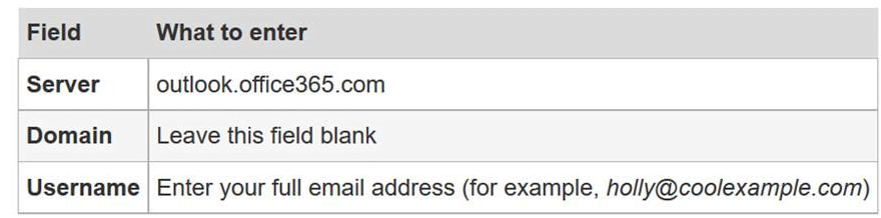
- Enter your Microsoft 365 email address.
- Enter your password when prompted.
- Complete MFA verification if required.
- Accept security settings and permissions.
- Choose synchronization options for:
- Calendar
- Contacts
- Tap Done or Save.
Troubleshooting
- Verify your email address and password are correct.
- Ensure you approve any MFA prompts in the Microsoft Authenticator app.
- If your organization manages mobile devices, you may be required to install the Microsoft Intune Company Portal app before access is granted.
- Contact your IT Help Desk if you receive enrollment or compliance errors.
Information Needed Before Setup
- Microsoft 365 email address
- Microsoft 365 password
- Access to your MFA method (Microsoft Authenticator, text message, or phone call)
- Internet connection (Wi-Fi or cellular)
Microsoft recommends using the Outlook app for the best Microsoft 365 experience on Android.
If you are subscribed, click here to view the apps to install.
How to Set up Office apps and email on your device Click to read more